May 05, 2025

How to Choose Coding Course for Kids: A Step-by-Step Guide In 2025

How to Choose Coding Course for Kids: A Step-by-Step Guide In 2025 image

In today’s digital era, coding is becoming a vital skill for children to learn early. Whether they are interested in games, animation, or just curious about how technology works, finding the right course can shape their learning journey. If you are wondering how to choose coding course for kids, this guide will walk you through the essential steps every parent should know. It covers what to consider, how to evaluate a course, and how platforms like Timedoor Academy make it easier than ever to get started.

1. Understand Your Child’s Interests and Learning Style

how to choose coding course for kids

The first step in how to choose coding course for kids is to understand what motivates your child. Do they enjoy building things, telling stories, or playing logic games? A child who loves art might enjoy animation-focused coding, while one interested in tech may love learning how apps work. Choosing a course that connects to their personal interests makes it easier to keep them engaged and excited about learning.

2. Match the Course to Their Age and Skill Level

Another important step in how to choose coding course for kids is making sure the difficulty fits your child’s current level. Younger children do better with visual tools like Scratch or Blockly, which help them understand basic logic without typing code. Older kids or those with some experience may benefit more from Python or JavaScript. Timedoor Academy provides coding programs grouped by age and ability, so children can learn comfortably at their own pace.

3. Look for Strong Curriculum and Project-Based Learning
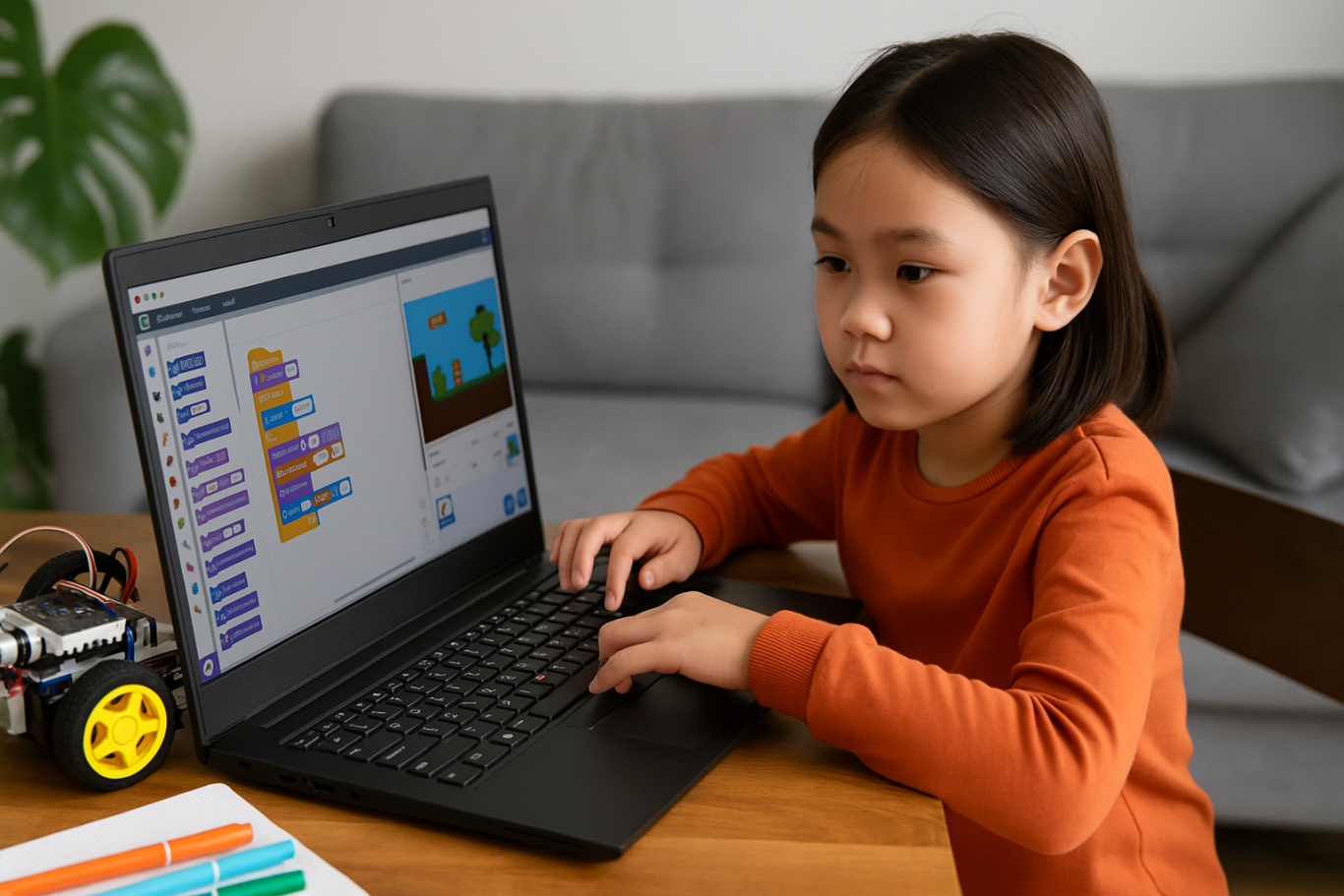
When exploring how to choose coding course for kids, the course structure matters. A good program should combine clear explanations with plenty of opportunities to build projects. Kids learn best by doing, so check if they’ll be creating apps, games, or animations. Timedoor Academy follows a project-based approach where each lesson builds toward a hands-on goal, helping children stay focused and feel proud of their work.

4. Decide Between Online or In-Person Formats

Your child’s learning environment can impact their progress. As you consider how to choose coding course for kids, think about whether online or in-person learning works better for your family. Online courses are flexible and accessible from anywhere, while in-person classes may provide more direct support. Timedoor Academy offers live online sessions with real instructors and small class sizes, blending structure with flexibility.

5. Evaluate the Teachers and Student Support

One of the key factors in how to choose coding course for kids is the quality of the teaching staff. Great instructors are not just skilled in programming—they also know how to communicate with children. Look for teachers who are patient, encouraging, and responsive. At Timedoor Academy, instructors are carefully trained to work with young learners and guide them with a friendly, easy-to-follow approach.

6. Try a Free Trial to See What Works

kursus anak di kelapa gading

Before making a commitment, it is helpful to try a class. This is one of the smartest ways in how to choose coding course for kids. A trial session lets your child experience the lesson format, meet the teacher, and decide if they enjoy it. Timedoor Academy offers free trial classes where children can explore coding firsthand, ask questions, and complete a mini project. This can be the difference between guessing and choosing a course with confidence.

Ready to Begin Your Child’s Coding Journey?

Ingin tahu detail program? Image

Ingin tahu detail program?

If you’re still wondering how to choose coding course for kids, the best way is to let them experience it. Timedoor Academy offers interactive and engaging online coding classes made for kids of all ages. With expert instructors, hands-on projects, and a flexible schedule, your child will not only learn coding but also grow in confidence and creativity. Sign up for a free class today and see how fun learning to code can be.


Keep Reading

How to Use Figma for Kids: A Fun and Simple Digital Design Guide
In today’s digital era, graphic design has become an increasingly essential skill, even for kids. Design is not just about drawing or creating illustrations. It also helps children develop creativity, visual logic, and systematic thinking. One of the most popular and beginner-friendly design tools to introduce early on is Figma. This article will guide you on how to use Figma for kids in a fun and easy-to-follow way. Figma is a web-based design platform widely used by UI/UX professionals and graphic designers. But because of its intuitive interface and real-time collaboration features, Figma can also be a great learning tool for children, especially those curious about digital design, posters, invitations, app layouts, or even simple games. Why Kids Should Learn Digital Design Digital design is not only about aesthetics, but also about communication. Kids who learn design early tend to express ideas visually, organize information clearly, and feel more confident experimenting with their creativity. Design skills also open doors to other fields like illustration, app development, animation, and branding. By learning how to use Figma for kids, the design process becomes more engaging. They can instantly try, rearrange, and explore design elements without needing to install any additional software. What to Prepare Before Using Figma Before your child starts designing, here are some things to set up: Figma account: Create a free account at figma.com. Use a parent’s email and assist during setup. Device: A laptop or desktop with a stable internet connection works best. Simple design theme: Start with fun, easy projects like a birthday card or character illustration. Benefits of Using Figma for Kids Here are some of the main benefits of using Figma as a learning tool for kids: Enhances creativity and visual aesthetics Builds logical thinking through layout structure Boosts confidence through hands-on creation Encourages teamwork and collaboration in online settings Step-by-Step Guide: How to Use Figma for Kids Below are specific steps on how to use Figma for kids, including core features and how to guide them: 1. Introduce the Interface and Basic Tools After logging in to a Figma account, walk your child through the main elements of the workspace: Canvas: the blank area where they’ll build designs Top toolbar: includes tools like Move, Frame, Shape, and Text Left panel: shows the object structure (layers) Right panel: used to adjust color, size, position, and effects Let them freely draw circles, squares, or stars and experiment with colors. This unstructured play helps them get familiar with Figma naturally. This is also a great starting point in how to use Figma for kids in a stress-free way. 2. Start a New Project Click New Design File and let your child name it something fun like “My Poster” or “Cute Cat Project.” Then: Create a Frame using A4 size or mobile screen dimensions Add shapes via the Shape tool, then change colors on the right panel Add text with the Text Tool, and adjust font size, color, and position This step of how to use Figma for kids feels like drawing on a digital piece of paper—fun and intuitive. 3. Add Images and Illustrations To make their design more dynamic, help them insert images: Click File > Place Image and choose from your computer Or simply drag and drop into the canvas Use the Unsplash plugin to find royalty-free images directly inside Figma This makes it easier for kids to create digital greeting cards, collages, or mood boards. These small projects are practical examples of how to use Figma for kids in real-life situations. 4. Create Simple App or Game Layouts For older kids, try introducing them to basic app layout design: Use Frames sized for iPhone or Android Add titles, icons, and buttons Turn elements into Components for duplication Use Prototype mode to simulate screen transitions This is a creative and exciting way to teach design logic and basic UX thinking. It’s also a more advanced stage in how to use Figma for kids who want to go deeper. 5. Collaborate and Present Figma is perfect for collaborative learning. Kids can: Click Share to invite parents, teachers, or friends Use Presentation Mode to view their design full-screen Receive comments directly on the canvas and learn from feedback These interactions help kids learn how to present and improve their ideas. How to use Figma for kids can extend into valuable lessons on teamwork and communication. Combine with Online Design Classes To support their learning journey, consider enrolling your child in an online design course. Timedoor Academy offers kid-friendly design programs based on fun projects and personalized learning. Learning how to use Figma for kids is much easier when supported by friendly mentors and structured activities. Tips for Parents to Support Learning To make the learning process smoother, parents can: Be present during the early stages, then give room to explore Ask about their designs and encourage storytelling Avoid focusing on perfection—celebrate creativity instead Try designing together as a bonding activity Ready to Introduce the World of Design? Introducing your child to digital creativity can begin with simple tools like Figma. With the right guidance and playful approach, how to use Figma for kids becomes a fun activity that sharpens logic, builds visual confidence, and sparks interest in technology. Timedoor Academy is here to support your journey. With interactive online classes and friendly instructors, your child can learn to design with confidence. Try a free class today and help your child discover their design potential from an early age.
How to Use Google Family Link: Step by step Guide in 2025
In this digital era, parents play an increasingly important role in guiding and monitoring their children’s online activities. One of the most popular apps used by families to help keep children safe and maintain a healthy balance with technology is Google Family Link. Through this app, parents can set, limit, and monitor their child’s device usage directly from their own smartphones. However, many parents are still not fully familiar with how to use Google Family Link effectively, so that its benefits can be maximized. This article will provide a detailed explanation on how to use Google Family Link, along with practical tips and benefits for both parents and children. Google Family Link is a free app from Google specifically designed to help parents manage Android or Chromebook devices used by their children. With this app, parents can set time limits, monitor which apps are downloaded, and even decide which websites their children can access. All these features make how to use Google Family Link especially relevant for parents who want to stay involved in their children’s digital world without being overly controlling. How to Use Google Family Link: A Step-by-Step Guide Here are the steps on how to use Google Family Link effectively for your family: Download and Install the AppThe first step in how to use Google Family Link is to download the app on both the parent’s and the child’s devices. The app is free and available on both the Google Play Store and the App Store. Make sure the app is installed on both devices to begin setting things up. Create and Link Your Child’s Google AccountOnce the app is installed, parents need to create a dedicated Google account for their child or use an existing one. Follow the instructions provided by the app to link the child’s account with the parent’s account. This process ensures that every digital activity of the child can be monitored directly. Set Limits and ControlsThe next step in how to use Google Family Link is to set device usage time limits, restrict which apps can be downloaded, and manage which content can be accessed by your child. Parents can also block certain apps, set a bedtime schedule, and even track the location of the child’s device in real time. Regularly Monitor Your Child’s ActivitiesOne of the main benefits of how to use Google Family Link is the ability to monitor your child’s daily activities, such as which apps are used the most, total screen time, and other online activities. Parents will also receive notifications if the child tries to download a new app or access restricted websites. Discuss Rules with Your ChildAlthough how to use Google Family Link gives parents full control, it is still important to involve your child in a discussion about device use rules. Explain the purpose of monitoring, listen to your child’s opinions, and make agreements together so the child feels respected and trusted. Benefits of Using Google Family Link for Families By learning how to use Google Family Link, parents can enjoy several benefits, including: Reducing the risk of children being exposed to negative content online. Helping children form healthy and balanced digital habits. Making it easier for parents to monitor device usage without constant supervision. Providing a means for education and communication about digital ethics. Challenges and Tips for Using Google Family Link Successfully Even though the features in how to use Google Family Link are quite complete, there are still challenges that parents might face. Some children may feel their privacy is invaded or may try to bypass the controls. It is important for parents to explain the reason for using the app as a form of protection, not just control. Involve your child in creating the rules and give them space to learn responsibility for their choices. Also, parents should stay updated with technological developments and new features from Google Family Link to get the most out of all its benefits. Connecting Digital Literacy and Coding for Kids Beyond setting boundaries for device use, it is also important to equip children with digital literacy and 21st-century skills such as coding. Through coding, children learn to think critically, logically, and adapt to technological advances. Parents can make use of their children’s screen time for educational activities, such as joining interactive online coding classes. Try a Free Trial Coding Class at Timedoor Academy If you want your child to be smarter with technology, sign them up for a free trial coding class at Timedoor Academy. In these classes, children can learn coding in a fun and interactive way that relates to their daily life. In addition to building digital literacy, children will be guided by professional mentors, making the learning process more structured and positive. Visit our Timedoor Academy website or social media to schedule your child’s free trial coding class today. By understanding how to use Google Family Link, parents can feel more at ease letting their children explore the digital world. Do not forget to maintain open communication, provide digital ethics education, and introduce coding as an important skill for a bright future.
resep makanan sehat untuk anak
Healthy Food Recipes for Kids: Delicious and Nutritious Ideas for 2025
Finding healthy food recipes for kids that are both nutritious and loved by little ones can feel like a daily challenge. Many parents worry about picky eaters, sugar-filled snacks, and time-consuming meal prep. If you are searching for healthy food recipes for kids, you are in the right place. This article features easy, tasty, and nutritious meals that support your child’s growth and make healthy eating more exciting. Whether for breakfast, lunch, or snacks, these healthy food recipes for kids are designed to be simple and kid-approved.   Why Healthy Eating Matters for Kids Children need a balanced diet to grow strong and stay focused throughout the day. Healthy food recipes for kids help introduce essential nutrients like protein, fiber, vitamins, and minerals in fun and appealing ways. A variety of colorful, whole foods can encourage better eating habits and even reduce cravings for processed snacks.   1. Rainbow Veggie Quesadillas Why kids love it: They are colorful, cheesy, and easy to eat with fingers. Ingredients: 1 whole wheat tortilla ½ cup shredded cheddar or mozzarella cheese ¼ cup chopped bell peppers (red, yellow, green) ¼ cup corn 2 tablespoons chopped spinach Olive oil for cooking Instructions: Heat a pan and add a bit of oil. Place the tortilla on the pan and sprinkle cheese and vegetables on one half. Fold the tortilla and cook both sides until golden brown. Cut into triangles and serve warm. Tip: Using whole grain tortillas adds extra fiber to the meal.   2. Fruity Yogurt Parfaits Why kids love it: It looks like dessert, but it is a nutritious snack or breakfast. Ingredients: 1 cup plain Greek yogurt ½ banana, sliced ½ cup mixed berries (fresh or frozen) ¼ cup granola 1 teaspoon honey (optional) Instructions: Layer yogurt, fruit, and granola in a cup. Repeat the layers and drizzle with honey if desired. Tip: Greek yogurt is rich in protein and calcium for strong bones and muscles.   3. Mini Veggie Muffins Why kids love it: They are soft, tasty, and fun to eat. Ingredients: 1 cup grated zucchini or carrot 1 egg 1 cup whole wheat flour ½ teaspoon baking soda ½ teaspoon salt ½ cup milk ¼ cup olive oil ¼ cup shredded cheese Instructions: Preheat oven to 180°C (350°F). Mix all ingredients in a bowl. Pour into greased mini muffin trays. Bake for 15 to 20 minutes. Tip: These muffins are perfect for lunchboxes or after-school snacks.   4. Chicken and Veggie Rice Bowls Why kids love it: They get to build their own bowl with their favorite ingredients. Ingredients: 1 cup cooked brown rice ½ cup cooked chicken pieces ¼ cup steamed broccoli ¼ cup chopped carrots 2 tablespoons sweet corn 1 tablespoon soy sauce or sesame dressing Instructions: Add rice to a bowl and arrange chicken and vegetables on top. Let kids mix the ingredients themselves. Drizzle lightly with sauce. Tip: Use lean chicken and brown rice for more protein and fiber.   5. Baked Sweet Potato Fries Why kids love it: They are crispy on the outside and soft inside. Ingredients: 2 sweet potatoes 1 tablespoon olive oil ½ teaspoon paprika ¼ teaspoon salt Instructions: Preheat oven to 200°C (400°F). Peel and cut the sweet potatoes into strips. Toss with olive oil, paprika, and salt. Bake for 25 to 30 minutes, flipping halfway. Tip: Sweet potatoes are rich in vitamin A and antioxidants.   Making Healthy Eating Fun for Kids Here are a few ways to make healthy food recipes for kids even more enjoyable: Use cookie cutters to shape fruits, sandwiches, and pancakes Let kids help with washing, mixing, and serving Add a variety of colors to every meal Keep meals simple and avoid pressure during mealtime   Healthy Meals, Smarter Minds With the right approach, healthy food recipes for kids can be simple, delicious, and part of a fun daily routine. The meals shared above are designed to keep your child nourished and satisfied throughout the day. From rainbow quesadillas to sweet potato fries, each dish is packed with essential nutrients that growing kids need. And while you're helping your child eat better, consider supporting their brain development too. At Timedoor Academy, we offer online coding classes for kids that are just as exciting and educational as a well-balanced meal. Learning to code improves logical thinking, creativity, and confidence. Sign up for a free trial class at Timedoor Academy today and give your child the tools to succeed both in the kitchen and in the digital world.
float button